| Please note this excludes Adult Leaders as they are added in a separate process by an SGL or higher |
Adding Parents
Now that you have created your family account you are ready to proceed with adding the individual persons. To begin, go to your left hand menu and click on Group Management >> Parents >> Add a Parent.
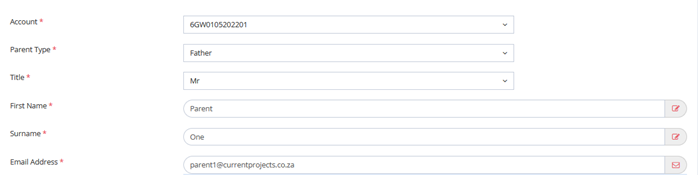
To begin you will need to assign the parent to the relevant family group. This can be done by selecting it from the dropdown (for long lists there is a search feature). When creating a parent account an email address is compulsory whereas for a youth member it not. You will then need to add a phone number and their physical address.
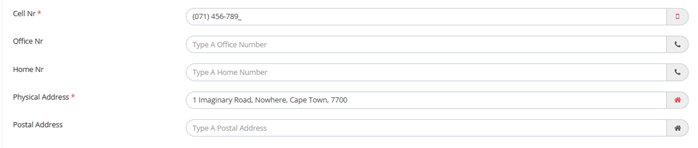
Once you have created their account an email will be sent to them from Scouts.Digital with their login details. Upon their first login they will be prompted to change the password.
Once you have created all the parent accounts for the family you can then move on to the Youth Members.
Adding Youth
Next up is adding the youth members to the account. This of course is the same as whether you are adding a Meerkat, Cub, or Scout. The only difference is that Meerkats and Cubs do not have the option of having an email address added to their profile. You will need to have Added Burrows/Sixes/Patrols to your Groups Scouts.Digital setup first.
To begin, go to your left hand menu and click on Group Management >> Meerkats/Cubs/Scouts.
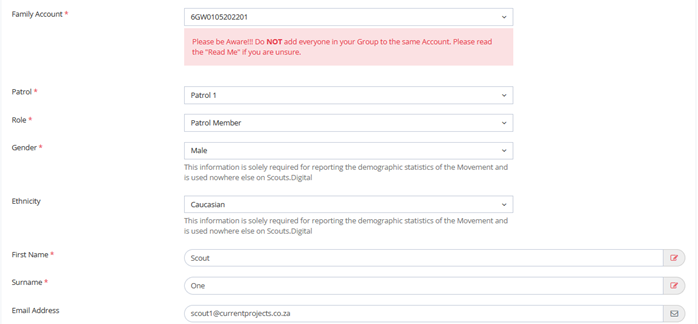
You will need to ensure that you add the scout to the same account as the relevant parent. Again – be very careful when assigning them as errors may take time to notice. You will then assign them to their patrol as well as adding in their personal information – take note that the email address is an optional extra. They will however need to have an email once they start applying for courses as it is used for communication. If the parent is iffy about them getting their own separate address you can advise them of the Gmail Additional Email Option.
Once you have created their account an email will be sent to them from Scouts.Digital with their login details. Upon their first login they will be prompted to change the password.
Most of the information on the Scout Profile is optional but at a bare minimum you should capture the following:
- Family Account
- Patrol
- Role
- Gender
- First Name
- Surname
- Date of Birth
- Date Started
- Investment Date
- Allergies/Allergy Instructions
- Medical Conditions/Medical Conditions Instructions
While the other data is most certainly valuable this is what you will need to cover your bases as much of this is what is used by the eventual course leaders.
Final Check
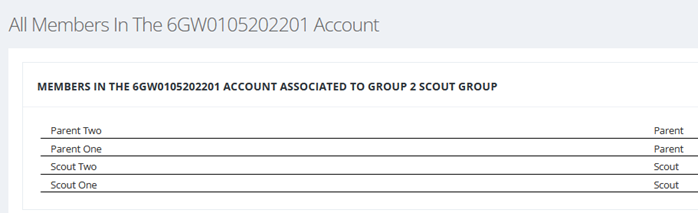
Once you have added all members of the family to their account you can go to their account information and check that you have done it correctly and ensure that they are all there.
Documents
Now that you have used the Application for Youth Membership to create the profiles you will need to upload this document to the account. For assistance with uploading documents please Click Here.
Was this helpful?
0 / 0